



Salesloft follow up automation is one of the most effective ways to save sales reps from losing half their day to repetitive tasks. There’s a pattern most reps know well — the day starts with good intentions, real calls, real conversations, closing deals. But somewhere between logging yesterday’s notes, figuring out who still needs a follow-up, and drafting the same check-in email for what feels like the hundredth time, half the day is gone. And the actual selling? That gets pushed to tomorrow.
This is exactly the kind of problem Salesloft was designed to address. Not by removing the human side of sales, but by handling the repetitive backend stuff so reps can stay focused on the work that actually matters.
Here’s how to set it up properly.
Have questions about this story?
Ask Tundra for more details, context, or updates.
Step 1: Start with a Cadence That Has Follow-Ups Baked In
The cadence is the backbone of how Salesloft manages outreach. If you want a deeper dive into building one, check out our guide on how to automate sales emails in Salesloft using cadences. At its core, it’s just a sequence — a list of actions (emails, calls, tasks) scheduled across a set number of days. But when it’s built well, it means a rep never has to manually figure out who to contact next or what to say.
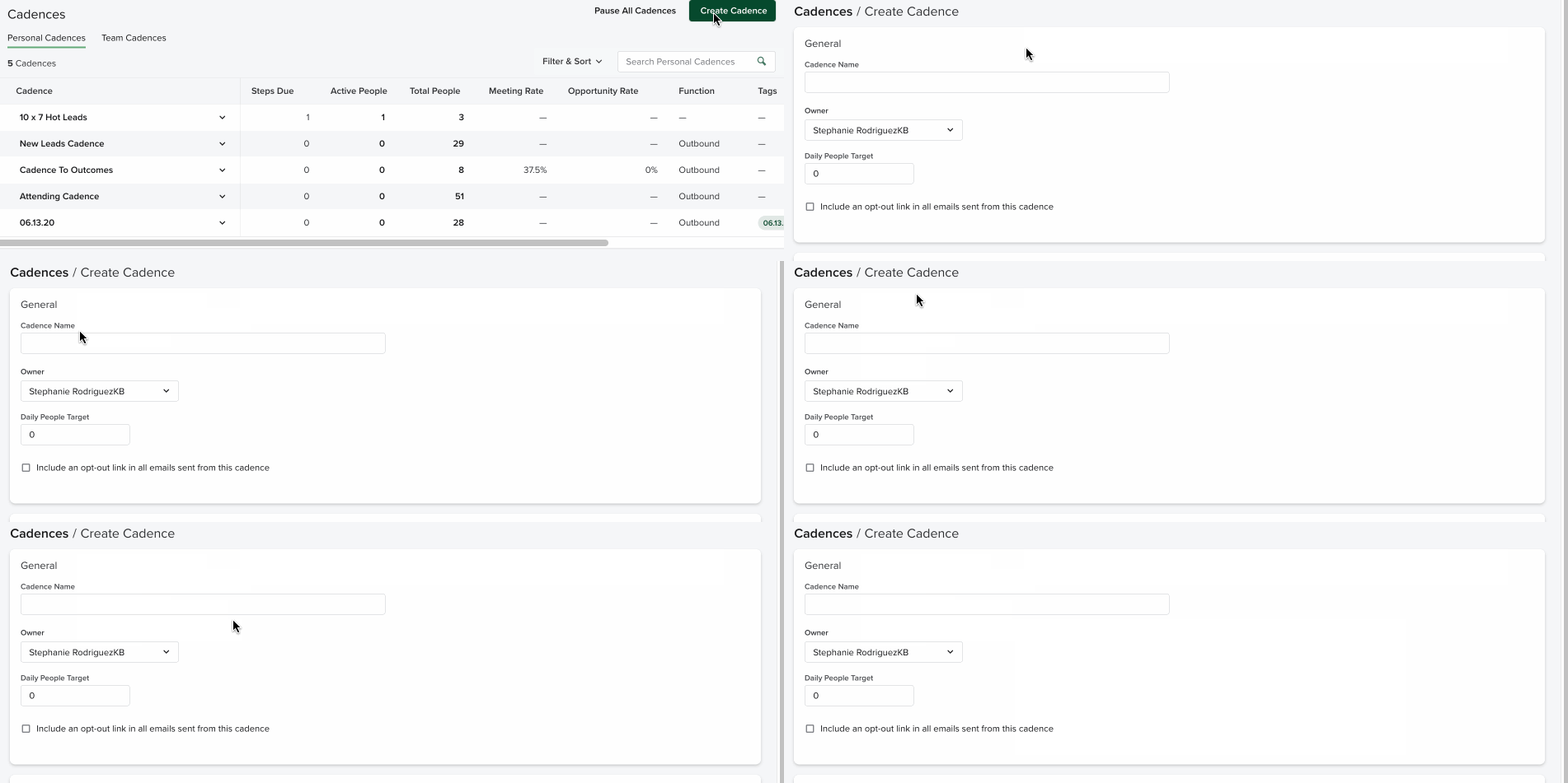
To create one, head to the Cadences tab and click “Create Cadence.” Give it a name that makes sense for the situation — “Post-Demo Follow-Up” or “Reengaging Cold Leads” both work fine. Then start adding steps.
A basic salesloft follow up sequence for a new prospect might run like this:
- Day 1 — Initial outreach email
- Day 3 — Phone call attempt
- Day 5 — Salesloft follow up message on LinkedIn or via SMS
- Day 7 — Second email
- Day 10 — Final check-in
That’s it. Once a prospect is added to the cadence, the sequence runs. Reps get notified when a step is due, or in some cases, the step fires on its own.
Step 2: Switch Email Steps to Automated
Here’s where a decent chunk of manual effort disappears. Inside any cadence, individual email steps can be marked as automated. When that setting is on, Salesloft sends the email by itself on the scheduled day — no rep action required.
To turn it on: open the email step inside the cadence builder, look for the automated toggle, switch it on, and attach a saved template to the step. That’s the whole setup.
Where this shines is in salesloft follow up messages that don’t need a lot of customization — a two-day check-in after a demo, a nudge after a proposal goes quiet, a re-engagement attempt for a lead that went cold three months ago. These messages benefit from being consistent and timely. Automated steps make that happen without anyone remembering to do it.
One thing worth doing: add personalization tokens (things like first name, company name, job title) to every template. Automated doesn’t have to mean generic.
Step 3: Build Out a Template Library
Templates don’t sound exciting. But for a sales team sending dozens of salesloft follow up messages a week, having a solid library means reps aren’t rewriting the same emails over and over — and it means the messaging stays consistent across the whole team.
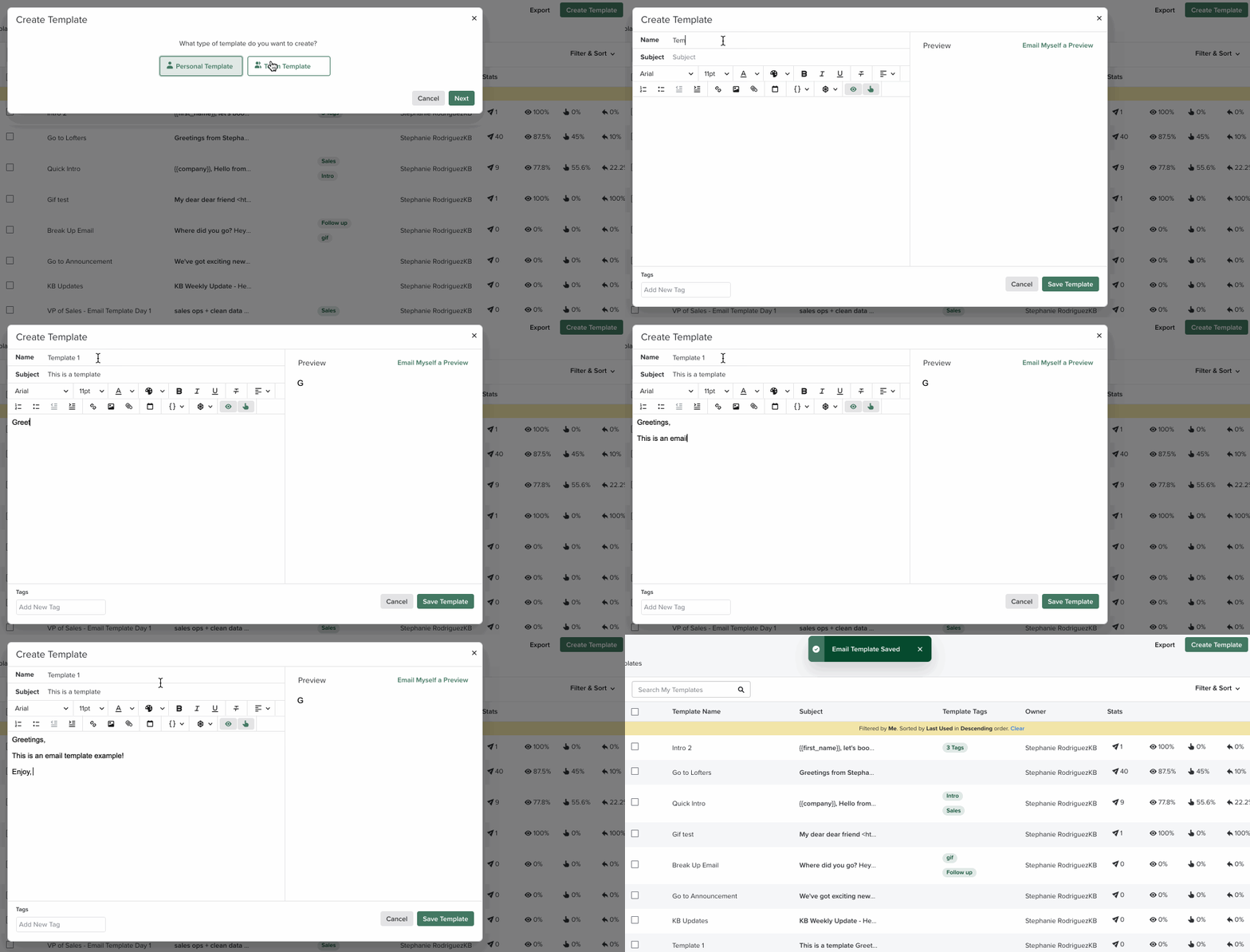
Creating one is straightforward. Go to Templates in the menu, hit Create Template, write the message, drop in personalization fields, and save it with a name that makes it easy to find later.
Templates worth having ready:
- A post-call recap that summarizes what was covered and what comes next
- A short “just circling back” message for when a prospect goes silent
- A follow-up after a proposal has been sent
- A re-engagement email for leads that have been cold for a while
Once they’re saved, templates can be attached to cadence steps or pulled up on the fly when a rep is working through their daily queue.
Step 4: Use Automation Rules to Handle Edge Cases
Scheduled cadence steps are great for the predictable stuff. But not every sales situation follows a clean timeline. That’s where Automation Rules come in.
These are conditional triggers — if something happens, Salesloft does something in response. No one has to monitor it.
Some useful ones to set up:
- If a prospect replies to any email → remove them from the cadence automatically
- If an email bounces → create a task for the rep to find a better contact
- If a meeting gets booked → stop all further follow-up steps immediately
- If a link inside an email gets clicked three or more times → flag the prospect as high-interest and alert the rep
The third one is especially worth setting up. Sending a salesloft follow up message to someone who just booked a call is the kind of thing that makes a rep look disorganized. Automation Rules stop that from happening.
To create one, go to Automation Rules in the settings panel, click Create Rule, set the trigger, set the action, and save it. Takes about two minutes.
Step 5: Make Follow-Up Notes a Habit
Salesloft follow up notes don’t get talked about as much as cadences or templates, but they’re genuinely important. When a rep’s notes are thorough, the next conversation picks up where the last one left off. When they’re missing, every follow-up starts cold.
Salesloft lets reps log notes directly after calls, inside contact records, or through the Deals section. Whatever gets written there syncs back to the connected CRM — Salesforce, HubSpot, whichever one the team uses — without any manual copying.
Good salesloft follow up notes don’t need to be long. What was discussed, what the prospect said, what objections came up, and what the agreed-upon next step is. That’s enough. The goal is just to make sure whoever picks up the thread next — whether it’s the same rep or a teammate — has the context they need.
You can refer to Salesloft’s official cadence guide for more details.
Final Thoughts
Follow-up is honestly where most deals are won or lost. The rep who sends a timely, relevant message at the right moment tends to stay top of mind. The one who means to follow up but forgets? That deal usually goes somewhere else.
Salesloft makes it easier to be the former. Set up the cadences, build out the templates, turn on the right automation rules, and keep the notes clean. Once that foundation is in place, reps get to spend their time on the part of the job that actually requires a human — the real conversations.