



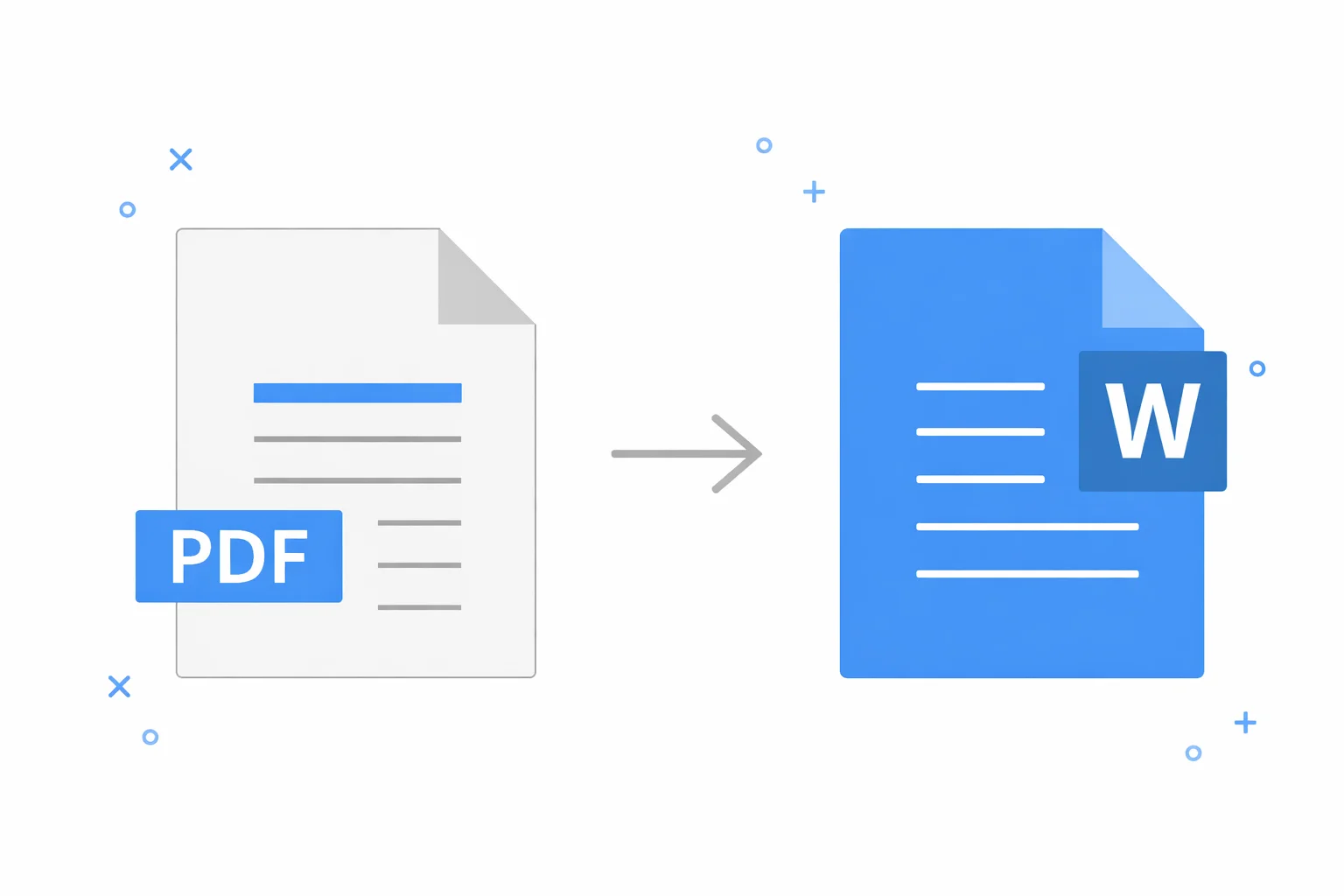
Converting a PDF to Word can be a lifesaver when you need to make edits to a document, but it often comes with the frustrating issue of losing formatting. Whether you’re dealing with a resume, a contract, or a report, you don’t want the original layout, fonts, or images to break. Fortunately, with the right tools and methods, you can convert without losing critical formatting. Given an estimated 2.5 trillion PDF files globally and over 290 billion new PDFs created each year, the scale of the document ecosystem underscores how common and essential PDF conversion has become. This enormous volume of files makes reliable formatting preservation a critical part of modern digital workflows.
Have questions about this story?
Ask Tundra for more details, context, or updates.
Why PDF-to-Word Conversion Breaks Formatting (and How to Prevent It)
PDFs and Word documents are fundamentally different in how they store and display content. PDFs preserve the exact layout and design of a document, while Word documents are more flexible, allowing for easier text manipulation but sometimes losing structure during conversion.
Common formatting issues when converting PDFs to Word include:
- Fonts: PDF fonts may not transfer properly, resulting in substitutions or missing characters.
- Spacing and alignment: Text and images may shift, making documents harder to read and edit.
- Tables and columns: These often break, causing data to spill over or lose alignment.
- Images and logos: Sometimes images or logos are misplaced or resized incorrectly.
The key to avoiding these issues lies in choosing the right method for converting your PDFs and understanding the root causes of the formatting problems.
Choose the Right Method: Copy/Paste vs Converter vs OCR
When it comes to converting a PDF to Word, there are several methods to consider:
- Copy/Paste Method: If the PDF contains simple text, copy and paste might be your easiest option. However, this method can disrupt formatting, especially for complex layouts such as tables or multi-column text. It’s best for quick edits or smaller sections of text.
- Converter Tools: Online converters or desktop PDF editors typically provide more reliable conversions. These tools preserve formatting much better than copy-paste, handling tables, fonts, and images. However, conversion quality can vary by tool.
- OCR (Optical Character Recognition): If you’re dealing with a scanned PDF, you’ll need OCR. OCR converts scanned text images into editable text. While OCR is essential for scanned PDFs, its accuracy can vary, and it may not preserve formatting as effectively as digital PDFs.
PDF to Word Online vs Desktop: Pros, Cons, and When to Use Each
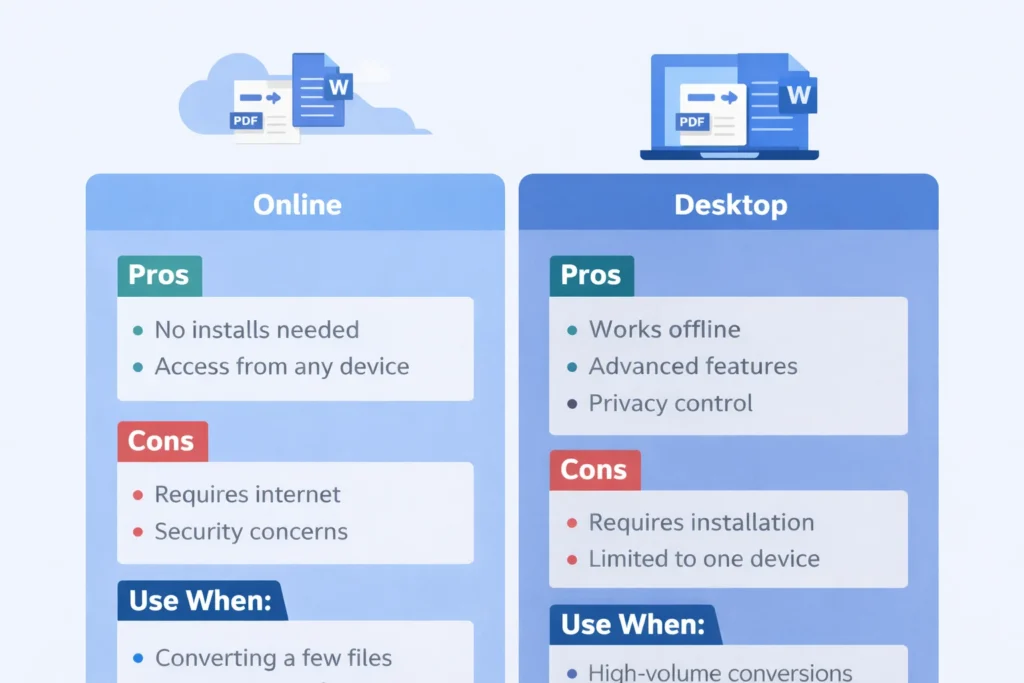
When converting PDFs to Word, you’ll encounter both online and desktop tools. Each has its pros and cons, depending on your needs and the tools available.
Online PDF to Word Converters
- Pros: Accessible from any device with internet access, easy to use, and no installation required.
- Cons: May have file-size limitations, may be less secure for sensitive documents, and may offer less control over conversion quality.
- When to use: Best for quick conversions on the go, especially if you’re working with smaller documents and don’t need advanced editing features.
Desktop PDF Editors
- Pros: Typically more powerful and secure than online tools, they offer more control over formatting and support batch conversions.
- Cons: Require installation, can be more complex to use, and may require a subscription or one-time payment.
- When to use: Ideal for larger files, professional work, or if you need to maintain document security and privacy.
How to Convert PDF to Word Without Losing Formatting (Step-by-Step)
Follow these steps for a smooth and accurate conversion:
- Choose the Right Tool: Use a trusted converter (online or desktop) that preserves formatting. Lumin is a great option for preserving your layout while offering additional features, including editing and collaboration.
- Upload the PDF: If you’re using an online converter, simply upload the PDF file to the tool. For desktop converters, open the software and load the PDF file.
- Select the Output Format: Choose Word (.doc or .docx) as your output format.
- Adjust Settings: Certain tools, such as Lumin, let you choose whether to preserve images, tables, and fonts. Adjust these settings to ensure the conversion matches your needs.
- Convert and Download: Click “convert” and let the tool process. After the conversion is complete, download your editable Word document.
Converting Scanned PDFs: OCR Basics and Accuracy Tips
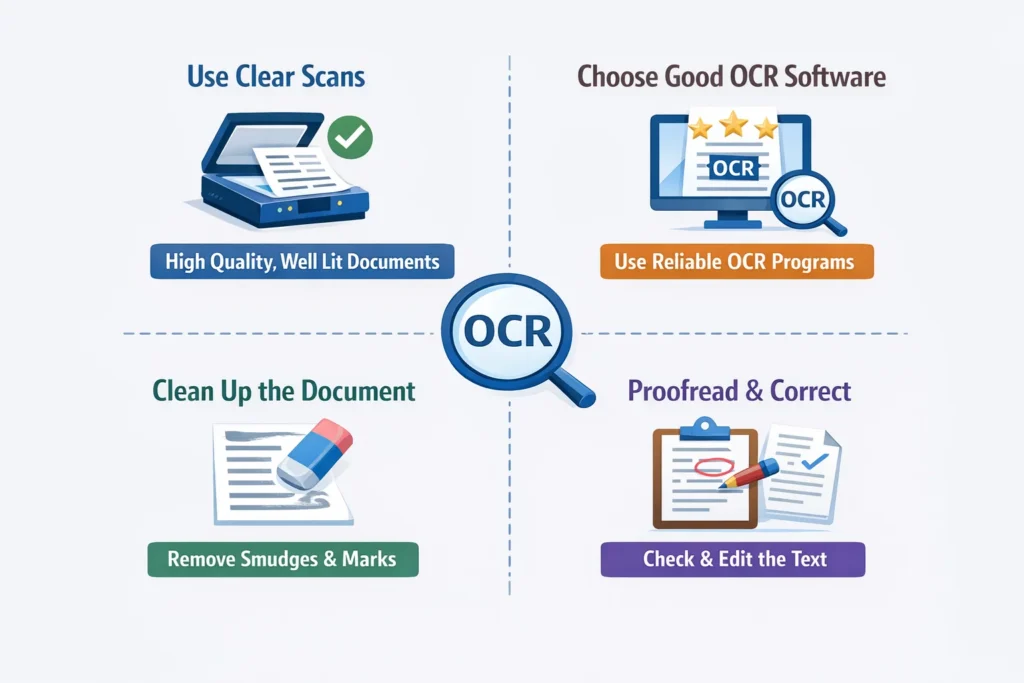
When converting scanned PDFs, you’ll need to use Optical Character Recognition (OCR). OCR software reads scanned images and converts them into machine-readable text, making the text editable.
However, OCR is not always perfect, especially with poor-quality scans. Here are some tips for getting better results with OCR:
- Use high-quality scans: Ensure the scanned PDF is clear and legible to improve OCR accuracy.
- Check language settings: Some OCR tools let you select the language, which can improve accuracy, especially with special characters.
- Proofread the output: After conversion, double-check the text to correct any misinterpretations, especially with complex characters or fonts.
Keep Tables, Headers, and Fonts Intact (Common Problem Areas)
One of the most common issues when converting it is preserving the layout of tables, headers, and fonts. These elements often shift or lose their formatting during conversion.
To keep tables intact:
- Look for a tool that offers “table recognition” to ensure your tables stay formatted properly.
For headers:
- Ensure the converter recognizes headers and footers so they remain consistent throughout the document. Many tools automatically detect headers, but it’s always good to check.
Fonts:
- Fonts may not always carry over perfectly due to font compatibility issues. Some tools let you embed fonts in the PDF, ensuring they’re included in the Word document.
How to Reduce File Size Before Converting (Without Ruining Quality)
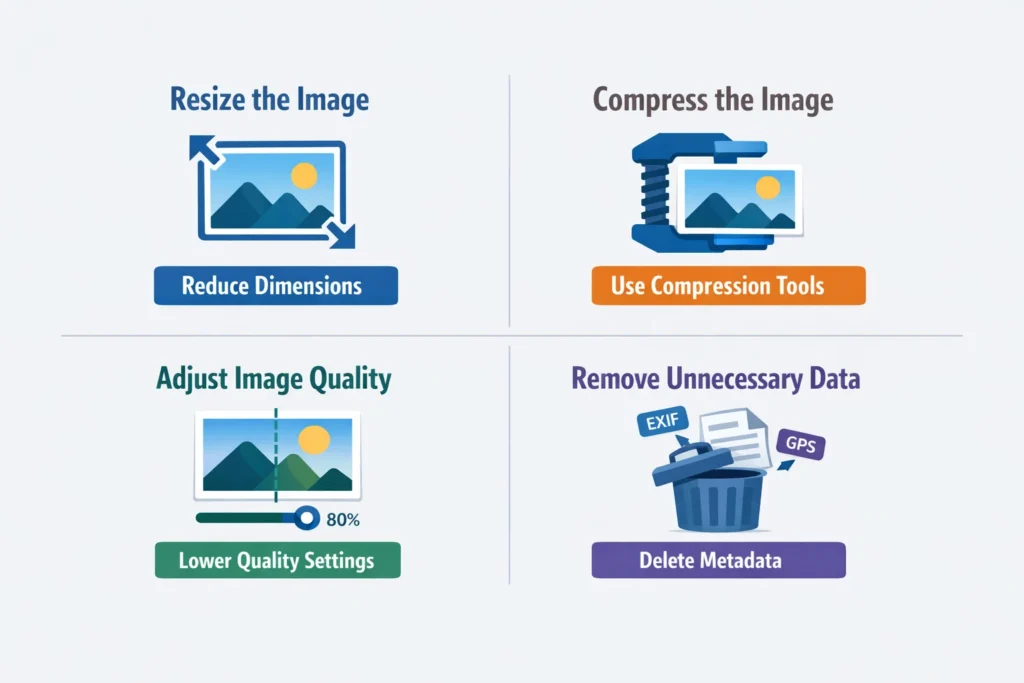
Large PDFs can be difficult to work with, especially when converting to Word. Reducing the file size without losing quality is crucial for a smoother conversion.
Here’s how to do it:
- Remove unnecessary images: If the PDF contains high-resolution images, consider removing or compressing them before conversion.
- Use PDF compression tools: Many online PDF editors offer a compression feature that reduces the file size without compromising quality.
- Optimize the document: Check whether the PDF contains unnecessary elements, such as extra pages or hidden layers, and remove them before conversion.
Security Tips for Sensitive PDFs (What to Avoid Online)
If you’re dealing with sensitive information, security is a top concern when converting PDFs online. Here are some tips to keep your documents safe:
- Use trusted converters: Always choose well-known, reputable converters with strong encryption.
- Avoid free, untrusted sites: Some free online converters may lack adequate security measures, putting your data at risk.
- Read privacy policies: Ensure the tool doesn’t store or share your uploaded files without your consent.
Fixing a Messy Word Output Fast
Even with the best conversion tools, sometimes the output requires a little cleanup. Here’s a quick checklist to fix any issues:
- Check for formatting errors: Look for any text that’s out of place, misaligned, or broken.
- Fix tables: realign tables, check for merged cells, and ensure data is correctly organized.
- Adjust fonts: If fonts didn’t carry over properly, adjust them to match the original PDF.
- Check images: Ensure images are placed correctly, resized properly, and not distorted.
- Proofread: Finally, proofread the document for any errors, especially if OCR was involved.
Whether you’re working with tables, images, or complex layouts, these strategies will help ensure a smooth and accurate conversion.